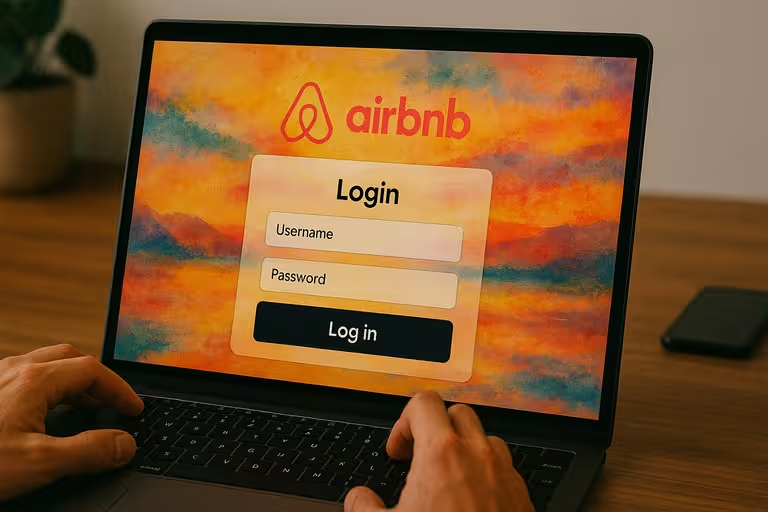
Airbnb Host Login: Simple Steps to Access Your Account

This guide provides clear, step-by-step instructions on how to log into your Airbnb host account via the website or mobile app. We'll also cover common troubleshooting tips and how to navigate to your essential hosting dashboard once you're in.
Before You Begin: What You'll Need
Make sure you have the following ready:
- Your Registered Email Address or Phone Number: The one associated with your Airbnb account.
- Your Airbnb Password: The password you set up for your account.
- Access to Your Verification Method (if enabled): This might be your phone for SMS codes or an authenticator app if you have Two-Factor Authentication (2FA) set up.
- An Internet-Connected Device: A computer, tablet, or smartphone.
How to Log Into Your Airbnb Host Account (Website/Desktop)
Follow these simple steps to sign in using a web browser:
- Navigate to Airbnb: Open your preferred web browser (like Chrome, Safari, Firefox) and go to the official Airbnb website: www.airbnb.com.
- Find the "Log in" Option: Look towards the top-right corner of the Airbnb homepage. You should see a "Log in" link or button.
- Click "Log in": Clicking this will open the login prompt or page.
- Enter Your Credentials:
- You'll typically be asked to enter the email address or phone number associated with your account.
- Click "Continue" (or similar).
- Next, enter your Password.
- (Alternative Logins): You may also see options to log in using Google, Facebook, or Apple if you previously linked those accounts. Choosing one of these will redirect you briefly for authentication via that service.
- Complete Verification (If Prompted): If you have 2FA enabled, Airbnb will send a verification code via SMS, email, or prompt you for a code from your authenticator app. Enter this code when asked.
- Click "Log in": After entering your password (and verification code, if needed), click the final "Log in" or "Continue" button.
You should now be logged into your Airbnb account!
How to Log Into Your Airbnb Host Account (Mobile App)
Using the Airbnb app on your smartphone or tablet is often the most convenient way to manage your hosting activities.
- Open the Airbnb App: Tap the Airbnb app icon on your device. If you don't have it, download it from the Apple App Store or Google Play Store.
- Tap "Log in": When the app opens, you'll usually see options to explore or log in. Tap the "Log in" button.
- Enter Your Credentials: Similar to the website:
- Enter your registered email address or phone number.
- Tap "Continue."
- Enter your Password.
- (Alternative Logins): Options for Google, Facebook, or Apple login will also likely be available.
- Complete Verification (If Prompted): Enter the 2FA code if required.
- Tap "Log in": Complete the process by tapping the final "Log in" button.
Finding Your Hosting Dashboard After Logging In
Sometimes, after logging in, you might land on the guest view of Airbnb (where you browse listings). To manage your property, you need to switch to your hosting dashboard:
- Look for Your Profile Icon: This is usually in the top-right corner (web) or bottom navigation bar (app).
- Find "Switch to Hosting": Click or tap on your profile icon. In the menu that appears, look for an option like "Switch to Hosting" or simply "Hosting."
- Access Your Dashboard: Clicking this will take you to your main Airbnb Hosting Dashboard, where you can manage your calendar, listings, inbox, reservations, and earnings (learn more about understanding host fees and payouts).
Troubleshooting Common Airbnb Host Login Problems
Can't log in? Here are common issues and solutions:
- Forgot Password: If you don't remember your password, click the "Forgot password?" link on the login screen. Airbnb will guide you through resetting it via your registered email or phone number.
- Incorrect Email/Phone: Double-check you're using the exact email address or phone number you registered with. Try any alternative emails/phones you might have used.
- Two-Factor Authentication (2FA) Issues:
- Didn't receive the code? Check your spam/junk folder (email) or ensure you have cell signal (SMS). Request the code again if needed.
- Authenticator app issues? Ensure your phone's time is synced correctly. Use backup codes if you saved them.
- Using Social Login (Google/Facebook/Apple): Ensure you are logged into the correct social media account in your browser or on your device before attempting the Airbnb social login.
- Account Locked/Suspended: If you receive a message about your account being locked or suspended, you'll need to contact Airbnb Support directly through their Help Center for assistance. Standard login troubleshooting won't work.
If problems persist, visit the Airbnb Help Center (www.airbnb.com/help - navigate from main site) for more detailed troubleshooting articles or to contact support.
Quick Security Tips for Your Host Account
- Use a Strong, Unique Password: Avoid easily guessable passwords and don't reuse passwords from other websites.
- Enable Two-Factor Authentication (2FA): This adds a crucial layer of security.
- Log Out on Shared Devices: Always log out fully if you access your account on a public or shared computer.
- Beware of Phishing: Be cautious of emails or messages asking for your login details. Log in directly via the official Airbnb website or app.
Conclusion: Access Granted!
Logging into your Airbnb host account is typically a quick and easy process via the website or mobile app. By following the steps above and having your correct credentials ready, you can swiftly access your hosting dashboard to manage your listing effectively. If you encounter issues, use the troubleshooting tips or contact Airbnb Support directly. Keeping your account secure ensures you can continue hosting smoothly and successfully.